
Fix Corrupted MP4 Video Files: Complete Guide
MP4 is a popular video file format, known for its compatibility, compression efficiency, and high-quality output. However, like other digital files, your MP4 videos may become corrupted or unplayable. Such instances usually occur due to reasons such as improper file transfer, faulty storage devices, virus attacks, etc. If you’ve ever faced a situation where an important video won’t open or play incorrectly, don’t lose hope.
Fortunately, several video repair methods are available to help you repair MP4 files. In this guide, we’ll explore common reasons for your video corruption, how to fix it, and preventive tips to avoid such corruption issues in the future!
Understanding What Is MP4 File Corruption
Sometimes, the data structure of your MP4 video file gets damaged or altered, which prevents your video player from reading it properly. When your video is corrupt, you may encounter the following symptoms:
- Video not playing at all
- Audio-video sync issues
- Freezing or skipping during playback
- Error messages while opening the file
- Missing frames or distorted visuals
If you’re getting any of the aforementioned symptoms, it’s important to immediately proceed with adequate video repair methods.
Why Do MP4 Videos Get Corrupted? [Common Reasons]
Before diving into different workarounds to repair corrupt or damaged MP4 files, try finding the exact reason for such corruption. Some main reasons include:
- Interrupted File Transfer: Any problem, such as sudden power failure or disconnection during the video transfer process, leads to incomplete or corrupted data.
- Faulty Storage Devices: Without continuous usage for a long time, bad sectors develop in storage devices such as hard drives, SD cards, or USB drives, which can damage video files stored on them.
- Virus or Malware Attacks: If your device is infected with malicious programs like viruses or malware, it can alter or delete parts of the stored files, including your MP4 videos.
- Software Crashes: Video editing or recording software crashing during processing may leave the file incomplete.
Quick Troubleshooting To Fix Corrupted MP4 Videos
Now that you are familiar with different reasons for your MP4 video corruption, it’s time to apply quick video repair methods. Go with the below basic fixes one by one to repair your videos easily:
Method 01: Try a Different Media Player
Sometimes your video file is not corrupted; it’s just the video player which prevents it from playing properly. In such a case, you can change your video player and try playing your MP4 video on a different player. Use alternatives like VLC Media Player or other advanced players that support more codecs.
Method 02: Repair MP4 Video with VLC Player
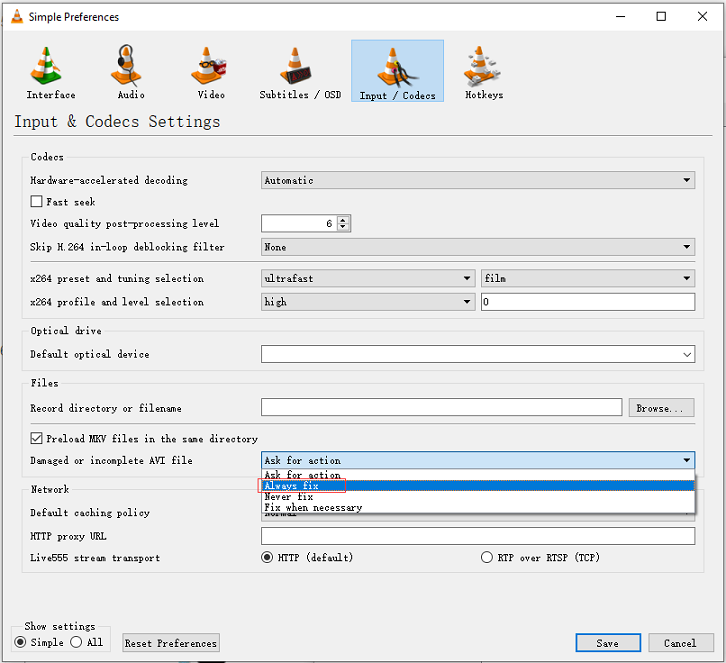
Windows’ VLC media player offers some built-in repair functions which you can use to fix minor corruption issues on your MP4 video. You can use VLC to fix issues like MP4 video no sound or choppy playback due to minor header corruption. However, you need to convert the MP4 video to AVI using VLC, as it may not work well for severely corrupted files of other formats.
To fix corrupted MP4 video files using VLC player, you have to:
- Firstly, change the file extension from .mp4 to .avi.
- Launch VLC player, go to “Tools” > “Preferences” > “Input or Codecs“.
- From the pop-up window that appears, select the “Always Fix” option next to “Damaged or incomplete AVI file“.
- Click the Save button to save the changes. Once done, try playing your video.
Method 03: Use FFmpeg to Repair MP4 Videos
FFmpeg is a powerful open-source MP4 video repair tool which you can use to fix issues like MP4 video no sound or unplayable files by re-encoding or remixing. This advanced video repair method works best for header-related corruption or syncing issues. All you have to do is:
- Download this command-line tool from the FFmpeg site.
- Now, press the Windows + R keys to launch the Run prompt. Type cmd in the search box and press the Enter key to launch the Command Prompt.
- If you’re a Mac user, go to Finder, select “Applications” > “Utilities” and double-click “Terminal“.
- Navigate to the FFmpeg directory. Type “cd + location of the video” (e.g., cd Desktop) to find the corrupted MP4 path.
- Type the command: “ffmpeg -i corrupted.mp4 -c copy repaired.mp4” to fix minor video errors.
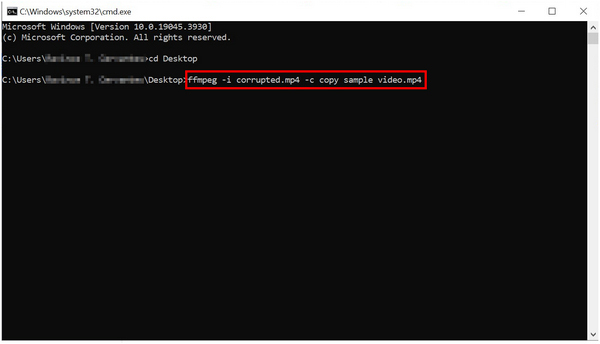
- Lastly, to recode the damaged MP4 file, you can run the command: ffmpeg -i corrupted.mp4 -c:v libx264 -c:a aac repaired.mp4.
Method 04: Repair Corrupted MP4 File Using Video Repair Software
If the above DIY method seems complex or fails for any reason, you can try third-party video repair software like Stellar Repair for Video. This all-in-one video repair tool supports repairing video files damaged due to interrupted file transfer, system crash, malware attack, or improper editing. The software allows you to repair damaged videos of several file formats, including MP4, MOV, AVI, and MKV. You can use this tool to fix videos stored on SD cards, hard drives, and other internal or external storage media.
Steps to repair damaged MP4 video files using the Stellar Repair for Video tool:
Step 1: Download and install the Stellar Repair for Video software from its official website on your Windows PC or Mac.
Step 2: Launch the software and from the homepage, click the Add Videos button to import the corrupted MP4 file you want to repair.
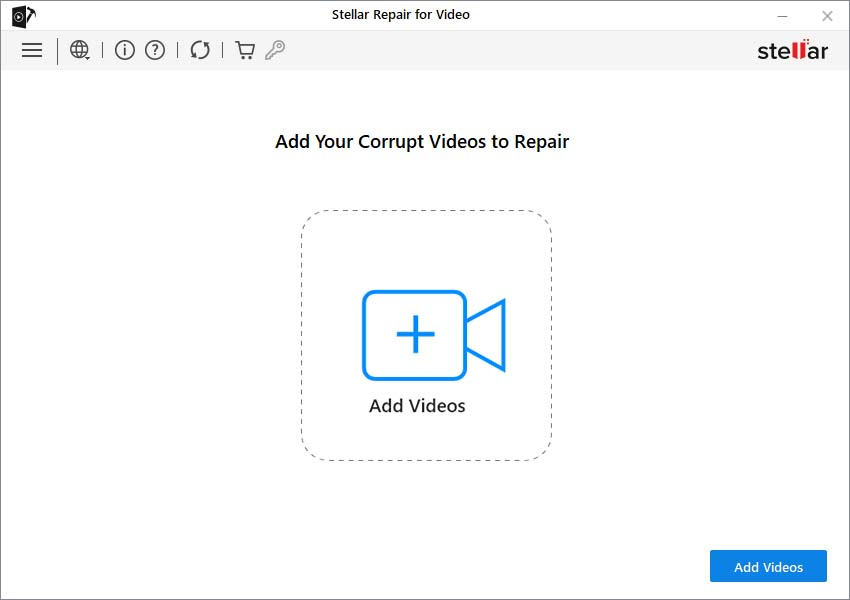
Step 3: After adding the file, click on the “Repair” button. The software will begin analysing and fixing the video file.
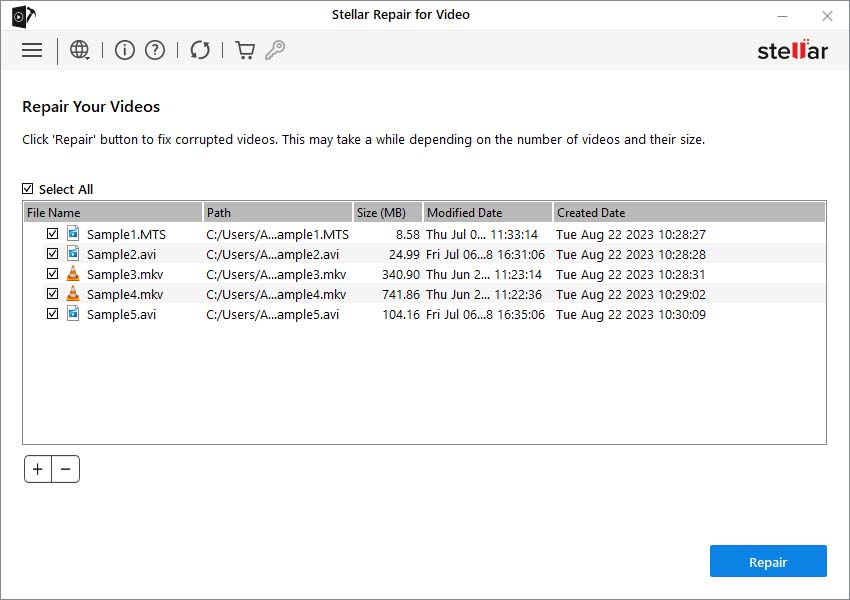
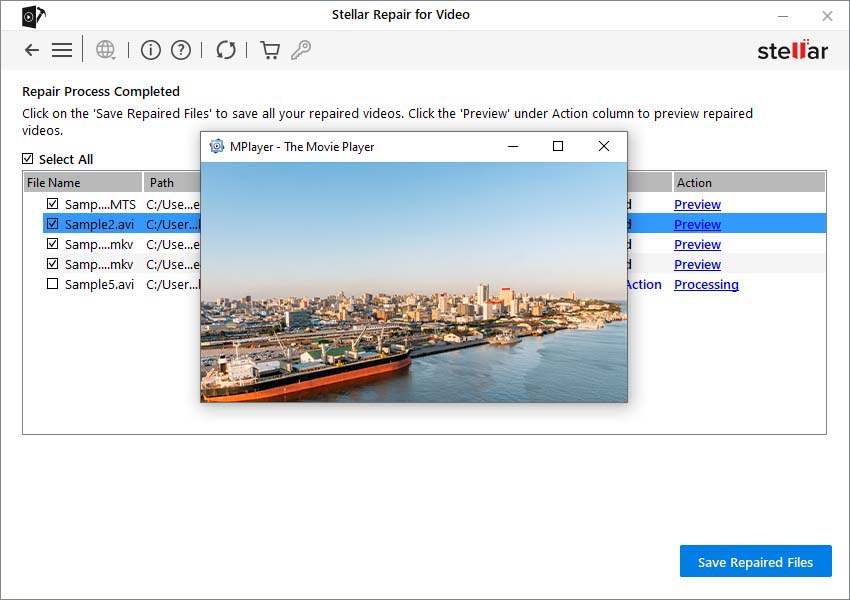
Step 4: Once repaired, you can preview the video to ensure it has been fixed properly. Click “Save Repaired Files” to store the repaired video at your desired location.
Why Choose Stellar Repair for Video?
In comparison to other video repair tools or basic repair methods, Stellar Repair for Video provides a more reliable and comprehensive solution. It not only fixes playback issues but also restores audio-video synchronisation, missing frames, and file structure errors. Its intuitive interface ensures that even non-technical users can repair videos without difficulty.
Conclusion
Having a corrupted MP4 file can be distressing, but there’s no need to panic. Thanks to the aforementioned free video repair methods, which allow you to fix your corrupted MP4 video files without any cost. Start with basic troubleshooting, and then move to more advanced solutions like trying video repair software like Stellar Repair for Video if needed. The key is to identify the severity of the corruption and choose the appropriate method.
With the right approach, most corrupted MP4 files can be restored successfully—saving both your time and your data. You can visit influencer gone wild for more trending posts.